

How to Search Slack by Date or Date Range
Step-by-step guide to searching Slack by date: use the Jump to Date shortcut or the before:/after: search operators to filter messages by a specific date or date range.
1 minute read
Slack doesn't have a calendar view, but there are two reliable ways to find messages from a specific date — one using the UI and one using search operators.
Method 1: Jump to Date in a channel or DM
If you know roughly which channel or DM the conversation happened in:
- Open that channel or direct message
- Find any date header in the message history and click it
- Select Jump to a specific date
- Use the date picker to navigate to the date you want
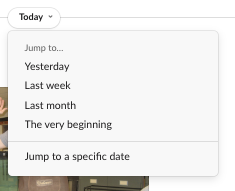
This is the fastest method when you know where to look.
Method 2: Search operators for exact dates or ranges
If you don't remember which channel, use Slack's search bar with date operators:
Exact date — messages sent on a specific day:
on:YYYY-MM-DD
After a date — messages sent after a given date:
after:YYYY-MM-DD
Before a date — messages sent before a given date:
before:YYYY-MM-DD
Date range — combine after: and before: to filter to a window:
after:YYYY-MM-DD before:YYYY-MM-DD
For example, to find messages from the first week of a given month, type after:YYYY-MM-01 before:YYYY-MM-07 in the search bar and press Enter. Slack will return all messages from that window across every channel and DM you have access to.
You can combine these with keywords or channel filters (in:#channel-name) to narrow results further.